














You've got a printer everyone needs, three operating systems trying to reach it, and a queue that works until someone reboots something. Maybe Windows finds the device but prints the wrong size, macOS sees a duplicate, or a Linux laptop discovers printers from another floor. That mess is exactly where Linux as print server earns its place. One always-on host owns the queues, the drivers, and the access rules, while clients just submit jobs. Done carelessly, though, that host also becomes an open network service listening for announcements from anything nearby. I treat CUPS as infrastructure, not as a desktop convenience. Build it in order, publish only what you mean to publish, turn discovery off where you don't need it, and prove recovery before users depend on it.
Table of Contents
- The Six-Step Setup Sequence at a Glance
- Driverless IPP Everywhere or PPD Drivers
- Turn On Sharing Without Exposing Every Queue
- Lock Down Discovery, Admin Access and Encryption
- Share Queues With Windows Clients Through Samba
- Validate the Queue and Fix What Fails
- Decide Whether a CUPS Server Fits Your Network
The Six-Step Setup Sequence at a Glance
A Linux print server is a CUPS install plus a short sequence of commands, and the order matters more than any single command. According to the OpenPrinting CUPS project history, development began in 1997 at Easy Software Products, the first public beta arrived on May 14, 1999, and the first production release followed in October 1999. CUPS replaced fragmented, vendor-dependent arrangements with one modular system for scheduling, spooling, printer discovery, driver integration, and network protocols. That's why one host can present a consistent interface to different clients and printers.
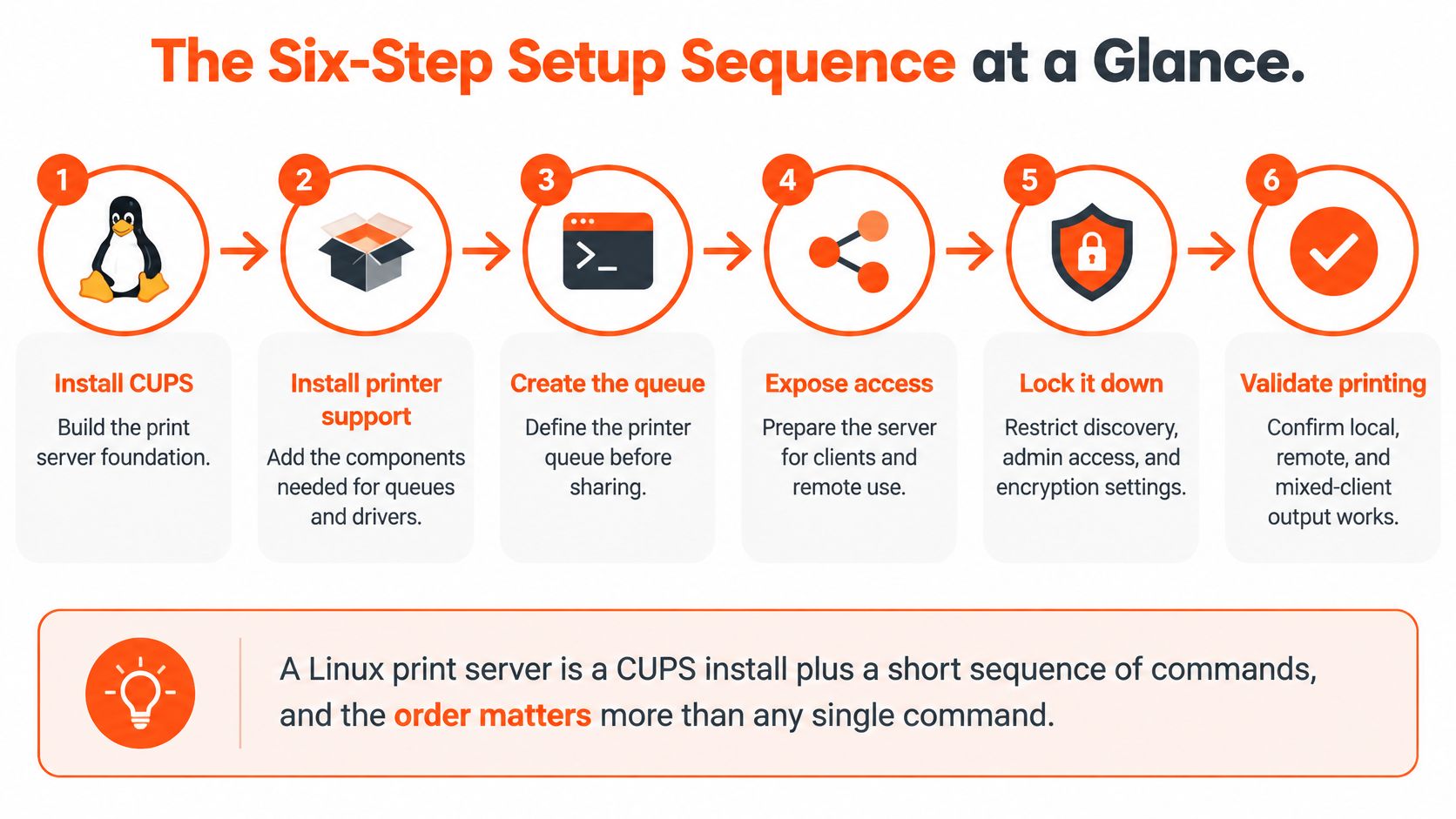
Setup sequence with commands and success checks
| Step | Command or action | Success check |
|---|---|---|
| Install CUPS and discovery tools | sudo apt install cups, or sudo dnf install cups |
systemctl status cups shows active |
| Set a stable hostname and IP | Static address or DHCP reservation | Clients reach the same address after a reboot |
| Open TCP 631 for IPP | firewall-cmd --permanent --add-service=ipp, then firewall-cmd --reload |
nc -vz server-name 631 connects |
| Discover the printer | lpinfo -v |
Device appears with an ipp:// or socket URI |
| Create the queue | lpadmin -p OfficeLaser -E -v ipp://ADDRESS/ipp/print -m everywhere |
lpstat -p OfficeLaser reports idle |
| Validate the server | lpstat -t, a test page, cancel a job, reboot the server |
Every check passes before users connect |
Why This Order Works
Prepare the host before you touch queues. Pick a machine that stays powered on, give it a static IP or DHCP reservation, and put it on a subnet that can reach the printers. If the address changes, every client URI breaks at once, and you'll chase what looks like a driver fault.
Addressing comes before discovery because lpinfo -v only helps if the network path is real. Queue creation comes before sharing because you can't publish, restrict, or test something that doesn't exist yet. Validation comes last, but it isn't optional decoration. Cancel a job on purpose, reboot the server, and confirm the queue returns on its own.
At the end you should see two plain facts. The queue reports idle, and a local test page prints correctly. If either check fails, don't invite clients in yet. Fix the foundation while the blast radius is still one terminal.
Driverless IPP Everywhere or PPD Drivers
The bottom line is simple. Default new network printers to driverless IPP Everywhere, and reserve PPD drivers for older hardware or for finishing features the device doesn't expose cleanly through IPP. A queue can follow either path, but mixing approaches for the same model creates inconsistent defaults and hard-to-reproduce complaints.
The Red Hat CUPS printing guide shows lpadmin -p Demo-printer -E -v ipp://192.0.2.200/ipp/print -m everywhere, where -m everywhere invokes the driverless workflow for an IPP-capable device instead of requiring a vendor PPD file. Red Hat also notes that ipp or encrypted ipps should be selected when the printer supports driverless printing, with port 631 as the default IPP port.
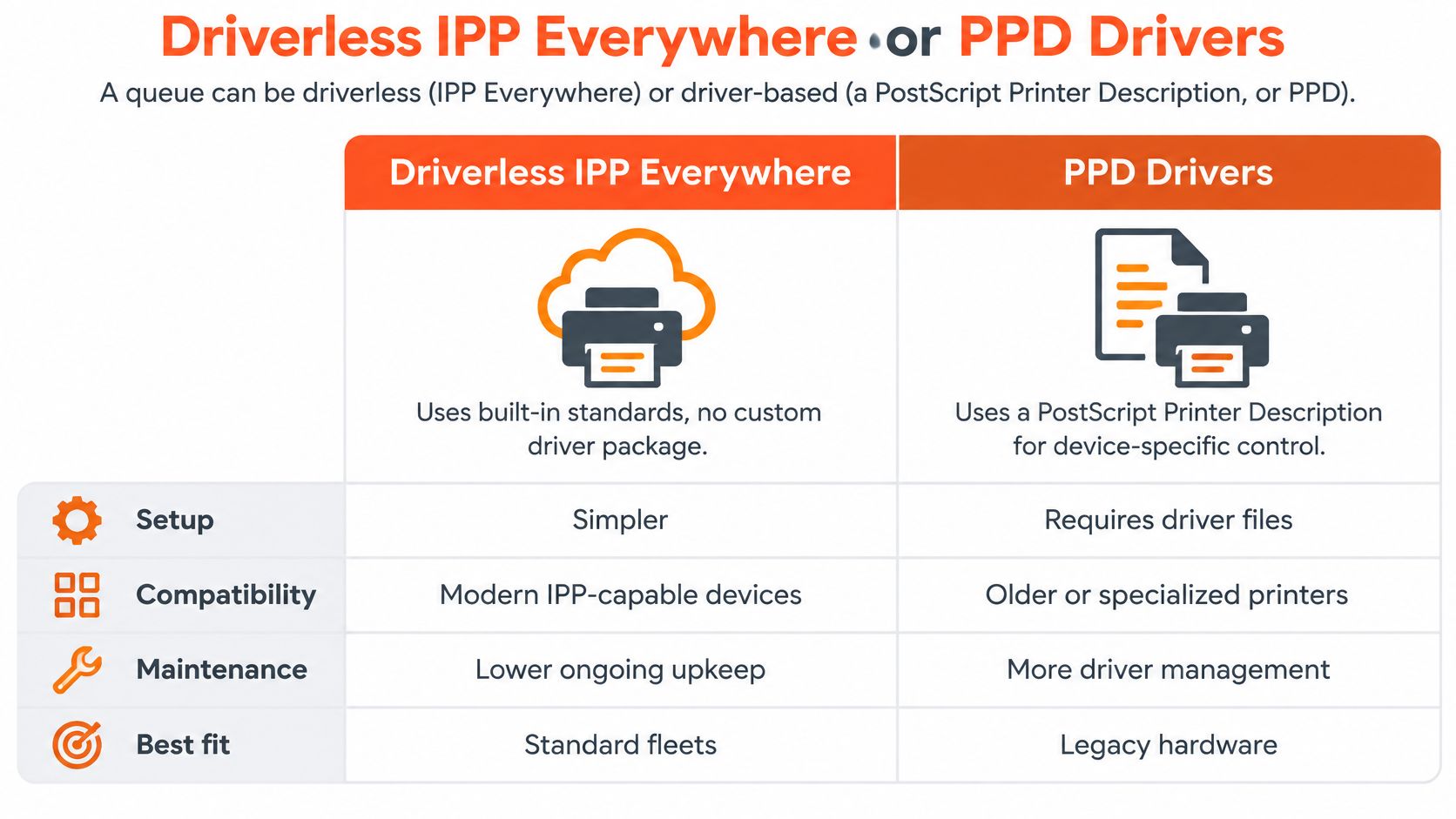
Driverless versus PPD provisioning
| Criterion | Driverless (IPP Everywhere) | PPD driver |
|---|---|---|
| Command | lpadmin -p NAME -E -v ipp://ADDRESS/ipp/print -m everywhere |
lpadmin -p NAME -E -v ipp://ADDRESS/ipp/print -P /path/model.ppd |
| Driver files on the server | None beyond CUPS | Vendor PPD kept under version control |
| Printer requirement | Device supports IPP | Any device a PPD describes, including non-IPP models |
| Maintenance | Few updates, capabilities come from the device | Re-check on every PPD update or firmware change |
| Best fit | New network printers and mixed-vendor fleets | Older devices needing specific finishing options |
The Rule of Thumb and the Fallback Test
Driverless wins on maintenance because capabilities come from the device. You aren't hunting for the right vendor file after every server rebuild, and a mixed fleet stays manageable. Use ipps where the device supports encryption, especially when jobs cross shared network segments.
The PPD path still has real uses. Add the vendor file with -P, keep it under version control, and record which firmware you tested against. Stapling, special trays, and odd media handling sometimes only behave correctly through a device-specific description.
Practical rule: If a driverless queue lacks a tray or duplex option, build a test PPD queue beside it and compare output before replacing the working queue.
Don't delete the working queue to run that experiment. Create OfficeLaser-test, print the same PDF both ways, and check trays, duplex, colour, and page count. Then pick one path per printer model and document it in the queue notes or your configuration repository. Future you will thank present you during the next rebuild.
Turn On Sharing Without Exposing Every Queue
CUPS sharing works in two stages, and that separation is your main safety control. First you enable sharing on the server, then you mark each individual queue you want to publish. The CUPS service running on a host doesn't automatically expose every configured printer, so an unshared queue stays private by default.
The CUPS printer sharing documentation uses cupsctl --share-printers for the global switch and lpadmin -p printer -o printer-is-shared=true for queue-level publication over IPP. It also provides --remote-any, which expands access beyond the local network to any network that can reach the server. That's rarely what a branch office wants, even if it looks convenient during setup.
A Small Office Example
Say a 12-person accounting office runs a colour multifunction device, a label printer, and a back-room laser. Finance staff need the multifunction and the laser. Nobody outside the back room needs the label printer, and accidental label jobs waste expensive stock.
You'd enable sharing once with cupsctl --share-printers, then set printer-is-shared=true only on the multifunction and laser queues. The label queue exists on the server for local administration, but it never gets published. Firewall rules allow TCP 631 only from the finance VLAN, so the guest network and the warehouse subnet can't reach the service at all.
That design gives you three independent controls. The global switch decides whether sharing exists, the queue flag decides what's published, and the firewall decides who can connect. Remove any one layer and the other two still limit exposure.
Connect and Prove It From a Client
Give clients an explicit URL in the form ipp://server/printers/NAME rather than relying on whatever discovery happens to find. Explicit URLs survive VLAN changes, and they make support conversations concrete. A user can read the queue name back to you instead of describing an icon.
From a Linux client, run lpstat -h server -l to confirm the published queues are visible and accepting jobs. Send a test page, then check the queue again on the server. Later, when someone asks whether a queue is shared, inspect its options instead of guessing from memory.
Avoid --remote-any unless you have a written reason and compensating firewall rules. Publish one queue to one subnet, prove a real client can print, and then repeat deliberately. Sharing should feel boring. Surprises belong in test queues, not in production printing.
Lock Down Discovery, Admin Access and Encryption
Discovery is the part of CUPS that feels helpful right up until someone walks a hostile laptop onto the same VLAN. A print server is network infrastructure: it listens on a port, accepts named queues, trusts attributes from clients, and exposes an admin surface. Treat that boundary as something you draw deliberately, not as a side effect of installing the package.
Start by knowing what you run. Check the installed build with cups-config --version or rpm -q cups, apply the latest CUPS updates offered by the distribution, then reboot or restart the service and check the version again. Do that before touching policy, because hardening an old listener only gives you a well-configured old listener.
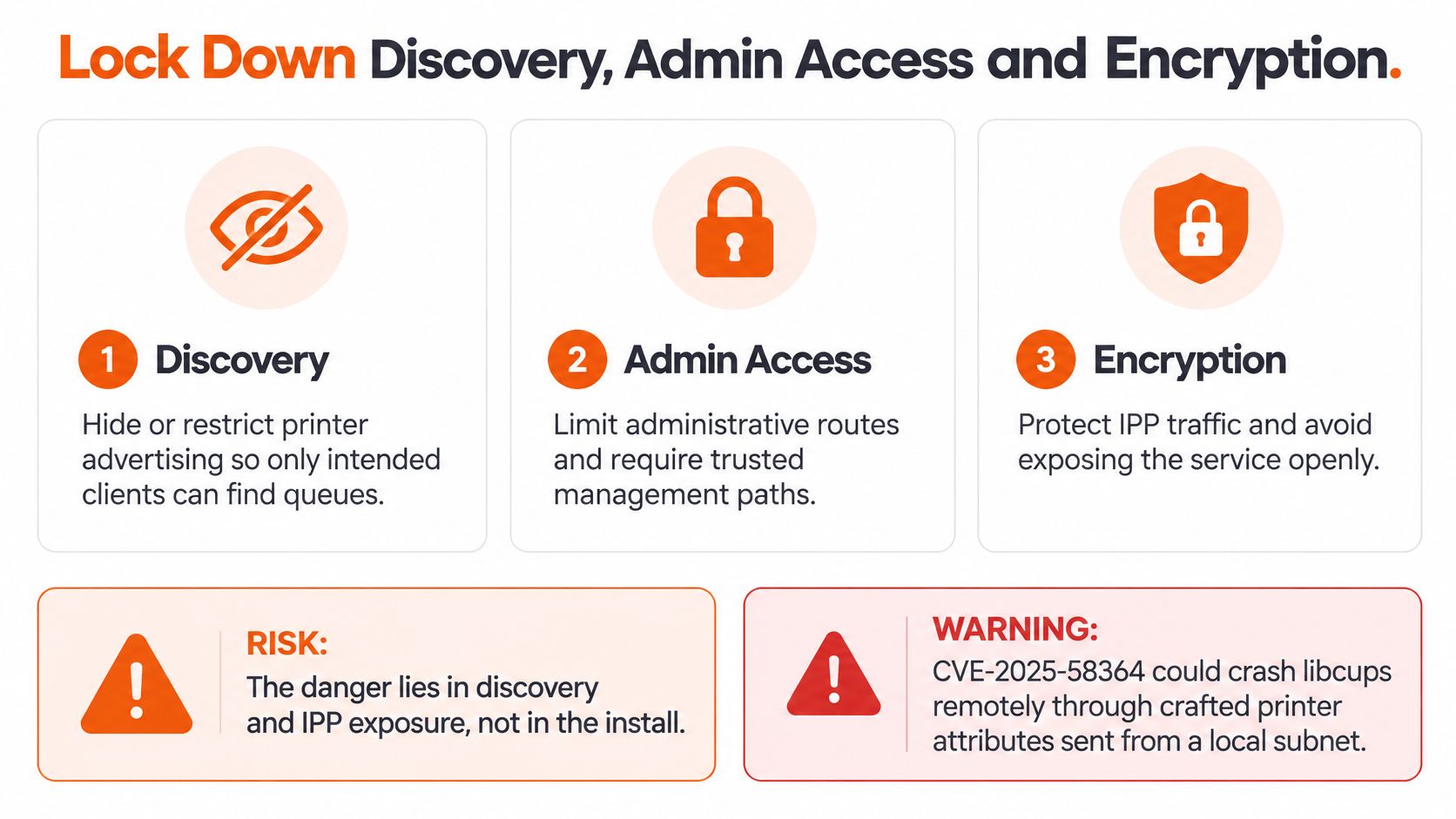
The risk concentrates in three places: automatic queue learning, unauthenticated administration, and plaintext job traffic. cups-browsed can create queues from announcements it hears, which is useful on a managed workstation estate and a bad idea on a segmented server. Print jobs can carry education, healthcare, legal, finance, or identity data, so an open queue is a data-handling endpoint even when it looks like office plumbing. Newer CUPS lines also make the boundary more explicit: local printing, remote queue discovery, and administration are separable concerns, and defaults should not be allowed to blur them.
The Hardening Checklist
- Confirm the version: Run
cups-config --versionorrpm -q cups, record the result, apply current distribution CUPS updates, and verify again after restart. - Disable cups-browsed: Use
systemctl disable --now cups-browsedon servers unless automatic queue creation is a documented requirement. - Turn browsing off: Set
Browsing Offincupsd.confwhen clients should use explicit queue names rather than finding advertised printers. - Restrict the listener: Limit
Listendirectives and firewall port 631 to managed subnets only, never to the whole network by default. - Protect administration: Require authentication for admin pages with
Require user @SYSTEM, following the discipline described in least-privilege administration. - Authenticate job submission: Use
AuthType BasicwithRequire valid-useronly behind TLS or another protected path, and preferippswhere devices support encrypted transport. - Separate accounts: Keep administrator accounts distinct from job-submission accounts so a shared print login can't reconfigure the server.
- Watch the logs: Monitor CUPS error and access logs, and alert on configuration changes under
/etc/cups. - Test failure on purpose: Stop and restart the service deliberately, then confirm queues return and a pending job behaves as expected.
On segmented or regulated networks, discovery stays off by default, and turning it on needs a documented reason.
Check the live surface after editing, not just the file you meant to edit. ss -ltnp should show only the addresses and interfaces you intended, the web admin path should demand the right group, and a client outside the permitted subnet should fail cleanly. If Basic authentication is unavoidable, pair it with encryption and tight scope; credentials in clear text over IPP are an internal leak waiting for a bored scanner.
Patching reaches beyond the box labelled "print server". Distribution defaults mean CUPS components often exist on machines nobody thinks of as print servers. Inventory which hosts listen on 631 or run cups-browsed, including workstations and jump hosts. Your hardened server does not protect a forgotten laptop in the next room that still trusts announcements.
Share Queues With Windows Clients Through Samba
Most mixed estates still include Windows clients that expect a \serverprinter share. Samba meets them there. It presents CUPS queues over SMB, so CUPS stays the single print pipeline for queueing, spooling, and delivery, while Windows users keep their familiar workflow.
The Red Hat Samba and CUPS reference configures Samba to use CUPS directly and marks the printer share as printable while disabling general writing. That separation matters. Clients submit jobs, they don't get a writable folder.
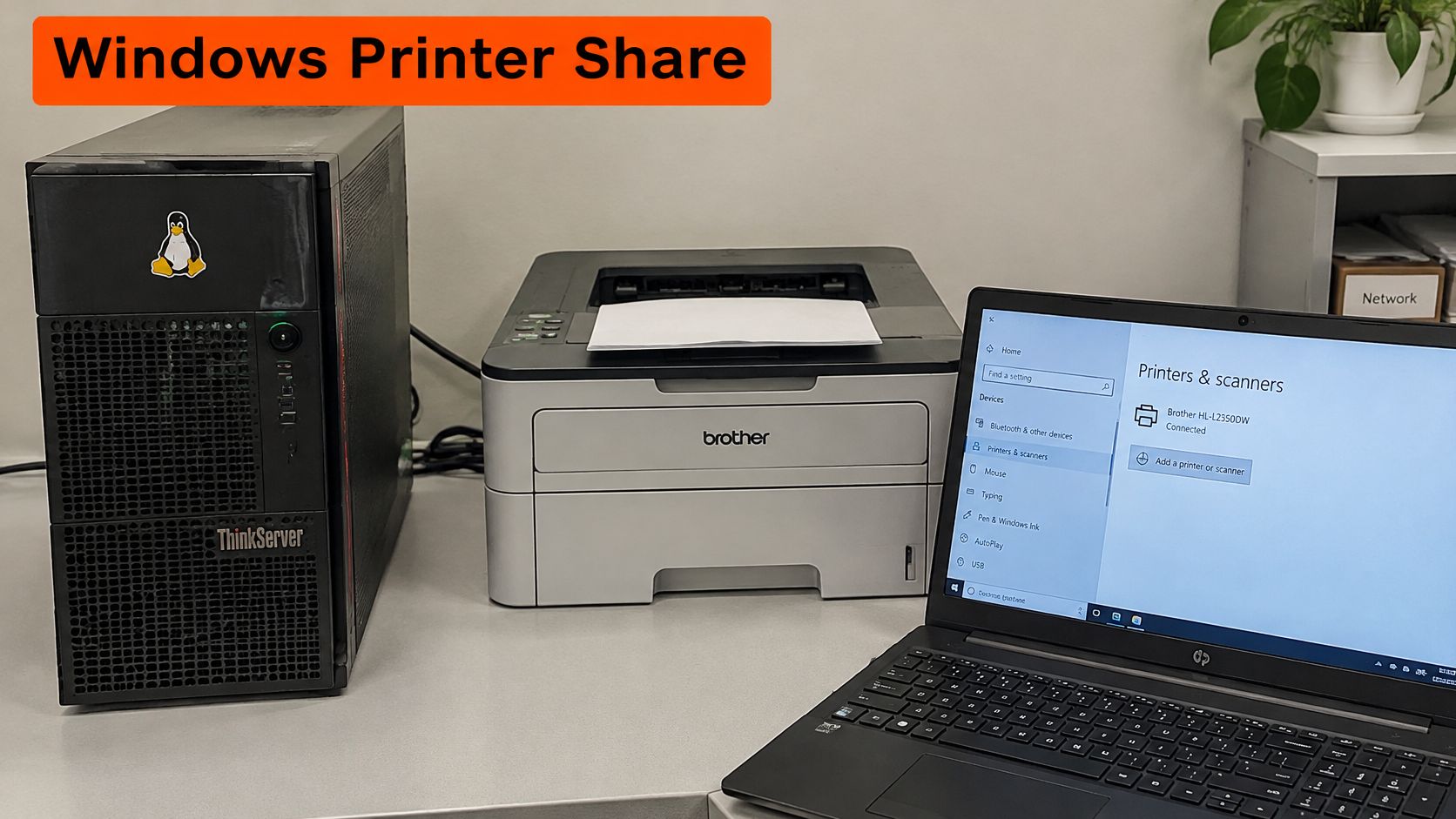
Configuration in Seven Steps
- Install Samba alongside CUPS on the print server.
- Set the global options in
smb.confunder[global]:printing = cups,printcap name = cups, andload printers = yes. - Create a spool path: Make a dedicated writable directory for the print service, owned appropriately, instead of reusing a general share.
- Define the printers share: Under
[printers], setprintable = yesandwritable = noso only queues appear. - Restart and check: Restart
smbdand CUPS, then runtestparmto catch configuration errors before users do. - Add the printer in Windows: Connect by UNC path and accept the driver the server offers, or select the tested driver manually.
- Use print$ sparingly: Enable the
print$share only when drivers must be pushed centrally, and restrict write access tightly, because a driver repository is a sensitive distribution point.
One constraint catches people out. If the destination printer is itself an SMB share, CUPS needs the smb backend linked to smbspool, which Samba supplies. CUPS doesn't include that backend on its own, so a missing link looks like a mysteriously broken queue.
Test Like a Windows User
A successful SMB connection proves almost nothing about print correctness. Windows driver rendering, paper-size defaults, and finishing options are where these setups fail. Print a PDF, an Office document, a duplex job, a job using a specific tray, and a file whose name contains accented characters. Check every page, not just the queue status.
Then confirm domain authentication behaves on both sides. A domain account should submit successfully, and a non-member should be refused clearly, not left queued without notice. The acceptance target I'd use is zero unexplained jobs in a 50-job cross-platform run, with correct page counts throughout. Anything less means your users become the test team.
Validate the Queue and Fix What Fails
Installation success is a weak pass mark. A queue that prints once from the server console can still fail from Windows, lose its settings after a reboot, or wedge on the first duplex job. Validation is where Linux as print server either becomes dependable or stays a demo.
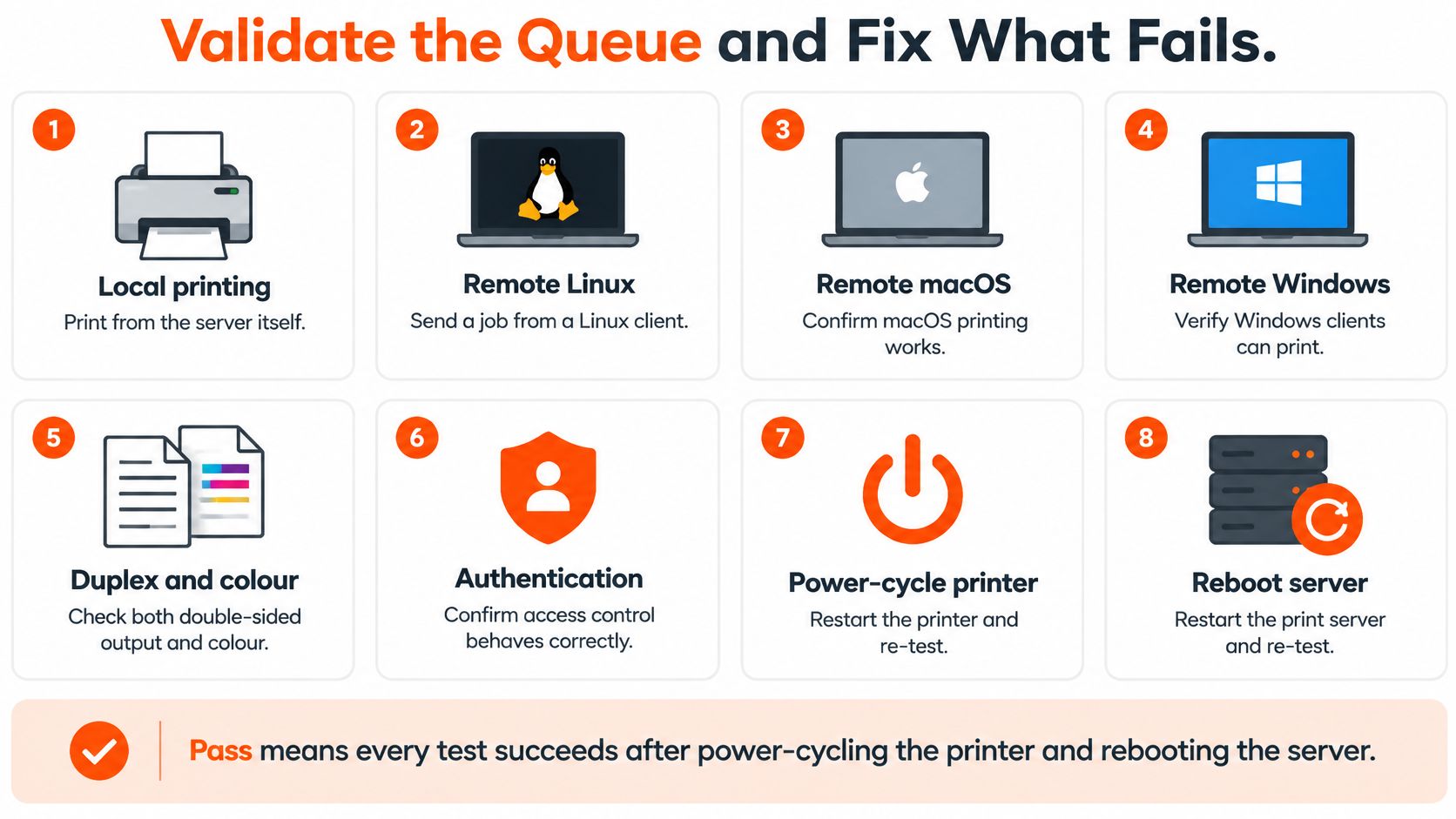
Set the acceptance line before you start. The full test matrix passes, a 50-job mixed run produces zero unexplained failures with correct page count and orientation, and the queue recovers after CUPS and Samba are stopped and started. Treat a printing outage with the same discipline as our incident management process, with a named owner and a written record of what changed.
The Test Matrix
Work through eight checks in a fixed order. Print locally from the server, then remotely from Linux, macOS, and Windows clients. Exercise duplex and colour, because both expose driver mismatches that plain test pages hide. Verify authentication accepts the right users and refuses the wrong ones. Finally, power-cycle the printer and reboot the server, then print again without touching the configuration. If you have to recreate a queue after a reboot, you don't have a service yet, you have a procedure.
Record results in a simple table with pass or fail per check. That record becomes your regression test after every driver change, firmware update, or CUPS upgrade. It also settles arguments later, because you can show exactly what worked and when it stopped working.
Symptoms, likely causes and fixes
| Symptom | Likely cause | Fix |
|---|---|---|
| Client cannot find the queue | Port 631 blocked or mDNS blocked across VLANs | Open 631 and add the queue by explicit ipp:// URI |
| Job stays in the queue | Wrong device URI or printer offline | Check lpstat -t, then correct the URI from lpinfo -v |
| Wrong paper size or missing duplex | Driver rendering mismatch | Set default paper in the driver and re-test with a PDF |
| Driverless queue has no driver match | Device lacks IPP support or the model is non-IPP | Switch that queue to a PPD and document the version |
| Queue disappears after reboot | Queue not saved or discovery turned off | Recreate with an explicit URI and confirm with lpstat -t after reboot |
| Unexpected printers appear on clients | cups-browsed adds remote queues automatically | Disable cups-browsed and turn Browsing off |
First Commands When Something Breaks
Start with lpstat -t for a stuck job. It tells you whether the scheduler is running, whether the queue accepts jobs, and where the job is sitting. For a backend fault, read journalctl -u cups and the CUPS error log before changing anything, because blind changes destroy evidence.
When a client can't find a queue, test with a direct ipp:// URI instead of debugging discovery first. Explicit addressing separates a network problem from an mDNS problem in one step. If the direct URI works, your server is fine and your discovery path is the fault, which often means mDNS blocked across VLANs.
Some failures aren't server faults at all. Faded output, transfer defects, and media problems happen at the device, and the Raccoon Transfers guide to printing problems is a useful companion for separating physical output issues from queue and driver issues before you rebuild anything.
A fix counts only when the full matrix passes again, not when one test page comes out.
That rule feels strict until the first time a quick fix passes locally and breaks Windows tray selection. Re-run everything, every time. It's twenty minutes of testing that saves a week of scattered complaints.
Decide Whether a CUPS Server Fits Your Network
Four criteria settle the decision: number of sites, number of printers, compliance obligations, and in-house administration time. Match them carefully, because an understaffed design fails slowly and then all at once. Hardware choice matters too, and Cobra DTF's printer selection guide covers the device side for small businesses weighing what to buy before it ever meets a server.
Choosing a setup by network size and obligations
| Criterion | Small office | Regulated or multi-site |
|---|---|---|
| Number of sites | One site with a few printers | Several sites or a large fleet |
| Printers and queues | A few queues on one subnet | Queues published across VLANs |
| Compliance | Light obligations, discovery off | Audited access, accounting and job history |
| Setup path | One server as described in this guide | CUPS 3.0 local and sharing split after a tested migration |
| Administration time | Patches on schedule in-house | Upgrades and rollback need dedicated time |
A small office with a few printers and an administrator who patches on schedule does fine with the one-server setup, discovery off. Regulated and multi-site environments need more thought. CUPS 3.0 separates local printing from a privileged sharing server, moving permanent queues, advanced spooling, accounting, job history, and release printing into cups-sharing. That split, which reflects the separation concerns in our software architecture principles, means an upgrade becomes a migration project with testing and rollback, not a package install.
If your team doesn't have time to run that properly, we can help. Our IT Infrastructure service sets up and manages secure development and delivery infrastructure, including access control, environments, CI/CD and monitoring, and a hardened print service fits naturally into that managed picture.
Do three things this week. Confirm your CUPS version, close discovery, and run the full test matrix.
Treat the print server as network infrastructure with a security boundary, and CUPS on Linux becomes one of the most dependable services you run.
If you'd rather not own patching, access control, and monitoring for infrastructure like this, devPulse sets up and manages secure development and delivery environments for enterprises and product teams. Tell us about your network, your compliance obligations, and the systems your team struggles to keep current, and we'll map a managed setup that fits.